
APTOFI Backup Files v. 1.0.5.0
- Supported OS: Windows 7 / 8 / 10 / 11
- Platform: .NET Framework 4.8
- Architecture: x64
- Archiving: 7-Zip (built-in integration; 7-Zip is distributed under the GNU LGPL license; official website: 7-zip.org)
- VSS Support: Volume Shadow Copy Service
- Long Path Support: Long Path, UNC, \\?\
- Works with local and network paths
- Supports complex directory structures
- Incremental backups
- Full backups
- 1:1 file copy without archiving
- Flexible scheduling: interval / calendar / special — advanced fine-tuning with individual parameters
- Limits the number of concurrent tasks
- Automatic log rotation and cleanup
- Portable architecture (no mandatory installation)
- Save jobs to a file
- Multilingual UI: 13 languages
When using archiving with compression and working with large data volumes (over 100 GB), system performance directly affects task speed.
Minimum recommended- CPU: at least 4 physical cores
- RAM: at least 16 GB
With high compression levels, archiving can take significantly longer.
Recommended for comfortable work with large volumes- CPU: 6 cores / 12 threads (e.g., modern Intel Core i5 or AMD Ryzen 5)
- RAM: 16–32 GB
With compression enabled, the program actively uses CPU and RAM. For storing backups, use drives from reputable manufacturers and monitor their condition regularly.
This program is not a beta version — it is a real working tool. However, it has not undergone public testing across a wide range of devices and configurations. For this reason, we do not guarantee correct operation on your hardware or system.
The program was built for the developer’s personal needs and fully meets those requirements. That is why this software is distributed free of charge and provided in the same form the author uses.
You download, install, and use this program strictly at your own risk. The program is provided "AS IS", without any warranties, express or implied, including but not limited to:
- warranties of operation under any system configuration;
- warranties of compatibility with specific hardware or software;
- warranties of being error-free;
- warranties of data safety;
- warranties of fitness for your tasks or expectations.
The developer is not responsible for:
- data loss, damage, or partial data loss;
- incorrectly configured jobs;
- user errors;
- incorrect schedule configuration;
- corrupted archives;
- operating system failures;
- power outages during task execution;
- hardware malfunctions;
- conflicts with antivirus or third-party software;
- any direct or indirect damages resulting from the use of the program.
Before using in a production or critical environment, it is recommended to:
- test the program on non-critical data;
- verify restore from created archives;
- ensure the selected settings are correct;
- create an independent additional backup copy.
Using this program means your full acceptance of this disclaimer.
The program is portable and does not require installation. All settings files, jobs, and logs are created next to the .exe. On first launch, required service files are generated automatically.
- Extract the program folder to a permanent location on disk:
C:\APTOFI Backup Files\ D:\Programs Files\APTOFI Backup Files\
Do not run the program from the Downloads folder. - Run the .exe once as Administrator.
- After the first start, the program will create required configuration files, job files, and log folders next to the .exe.
- If you need autostart, enable "Run with Windows" in settings and reboot the PC.
- During a task run, a temporary folder named like _vss_.... will be created on the destination drive. Do not touch or delete this folder while the task is running. If the task hangs or the program was closed incorrectly, only then you may delete the temporary folder.
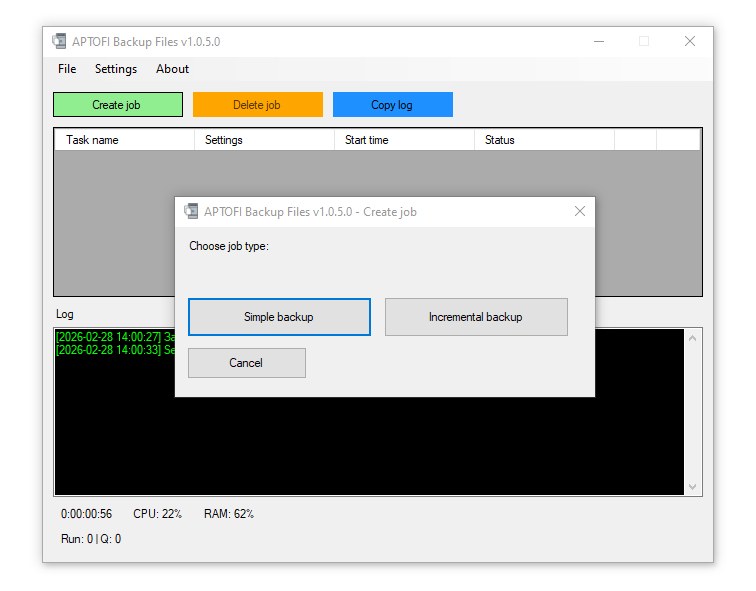
When creating a job, you first choose the task type:
- Simple backup — a single backup mode (suitable for a standard full archive by schedule, or 1:1 copy).
- Incremental backup — a mode using the full backup + incremental scheme, where you can configure separate schedules and separate retention for full and incremental backups.
If unsure, start with Simple backup. If you need faster updates for large datasets, choose Incremental backup.
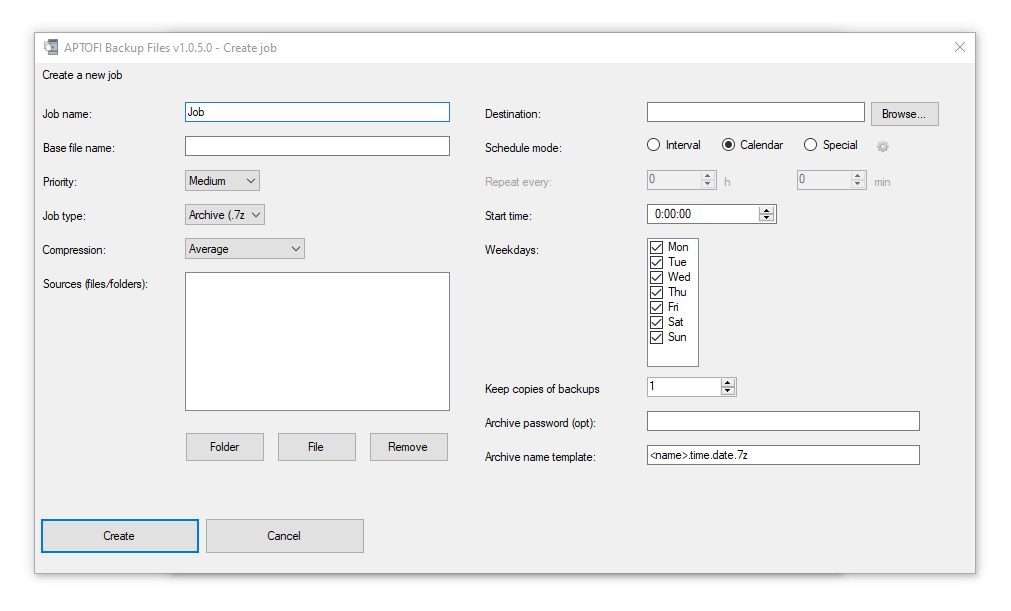
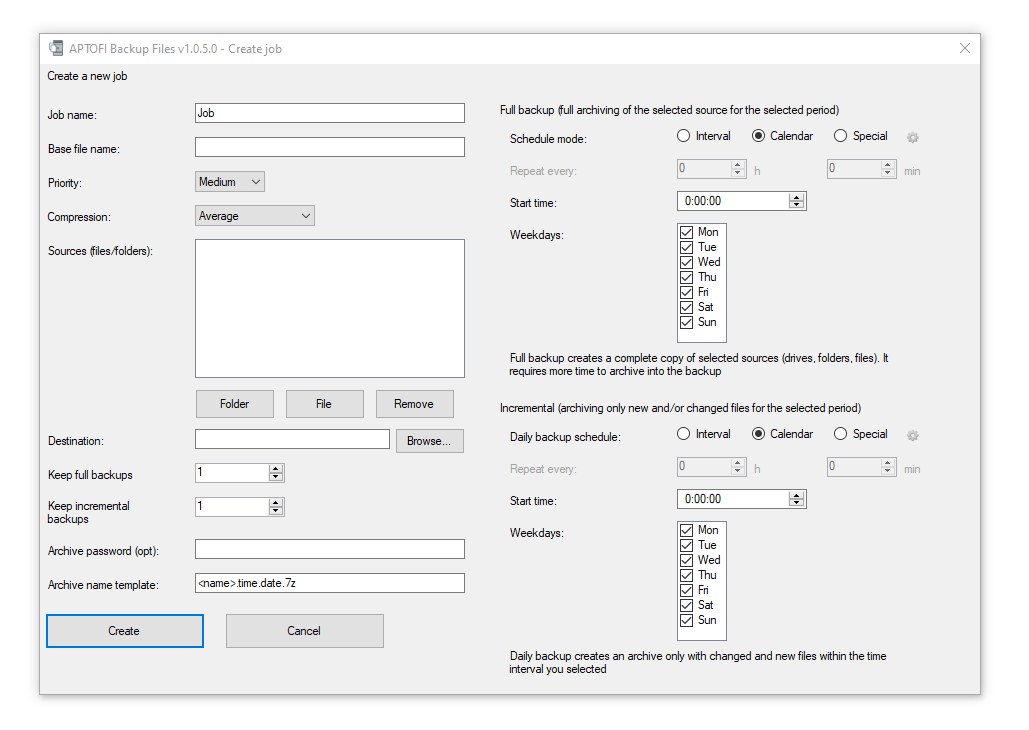
2) Job Fields: What Each Item Means- Job name — any convenient title to distinguish tasks in the list.
- Base file name — the base of the archive/copy name, used together with the naming template.
- Priority — affects execution speed when multiple tasks run simultaneously.
- 1:1 copy — copies files to the destination folder without archiving. Useful when you need a “live” copy you can open and use immediately without extraction.
- Archive (7z) — creates archives in the destination folder. You can choose compression level, password, and archive name template.
- Compression — affects speed and archive size: higher compression takes longer but produces smaller archives.
- Archive password (optional) — protects the archive.
- Archive name template — automatically builds names (typically job name + date/time so archives do not overwrite each other).
Sources (files/folders) is the list of what will be backed up.
Controls:
- Folder — add an entire directory.
- File — add a single file.
- Remove — remove the selected item from the list.
It is recommended to add folders (for projects, documents, photo archives, etc.), and add individual files only when truly necessary.
6) DestinationDestination is the target folder where:
- archives will be saved (if archiving mode is selected), or
- a 1:1 copy will be created (if 1:1 mode is selected).
Use the Browse... button to select the destination.
7) RetentionThe program can limit how many backups are kept:
- Keep backup copies — for Simple mode (how many archives/copies to keep).
- Keep full backups and Keep incremental backups — for Incremental mode (separate limits for full and incremental).
This prevents backups from filling your disk uncontrollably: older copies will be removed automatically when the limit is exceeded.
8) What Is Incremental Backup and When It HelpsIncremental backup means that after the first full backup, the program saves only new and changed files.
Incremental is especially useful:
- when there is a lot of data (e.g., 100–500 GB or more),
- when changes happen often (projects, work folders, databases, documents),
- when a full backup takes too long but you need frequent updates.
Typical workflow:
- Full backup — less often (e.g., weekly or every few days).
- Incremental — more often (e.g., daily or every few hours).
You get a “base point” as a full archive and fast updates as incremental archives.
9) Scheduling Options: Interval / Calendar / SpecialThe program provides multiple ways to set the run time.
Use this when you need to run a job “every N hours and N minutes”.
How it works:
- set the repeat interval (e.g., 0h 10m — every 10 minutes, or 5h 30m — every 5 hours 30 minutes);
- optionally restrict runs by weekdays if the job settings allow it;
- best for regular repeats during the day/week.
Examples:
- every 30 minutes during work hours;
- every 6 hours to keep the copy up to date;
- every 24 hours as “once a day” when exact time is not important.
Use this when you need to run strictly at a specific time on specific days.
How it works:
- set the start time (e.g., 02:00);
- select the weekdays when runs are allowed (e.g., Mon/Wed/Fri);
- the job will run at the specified time on the selected days.
Examples:
- every day at 02:00;
- weekdays only at 01:30;
- Sundays only at 05:00.
This is an advanced calendar mode for fine-tuning with individual parameters. The description below is unchanged.
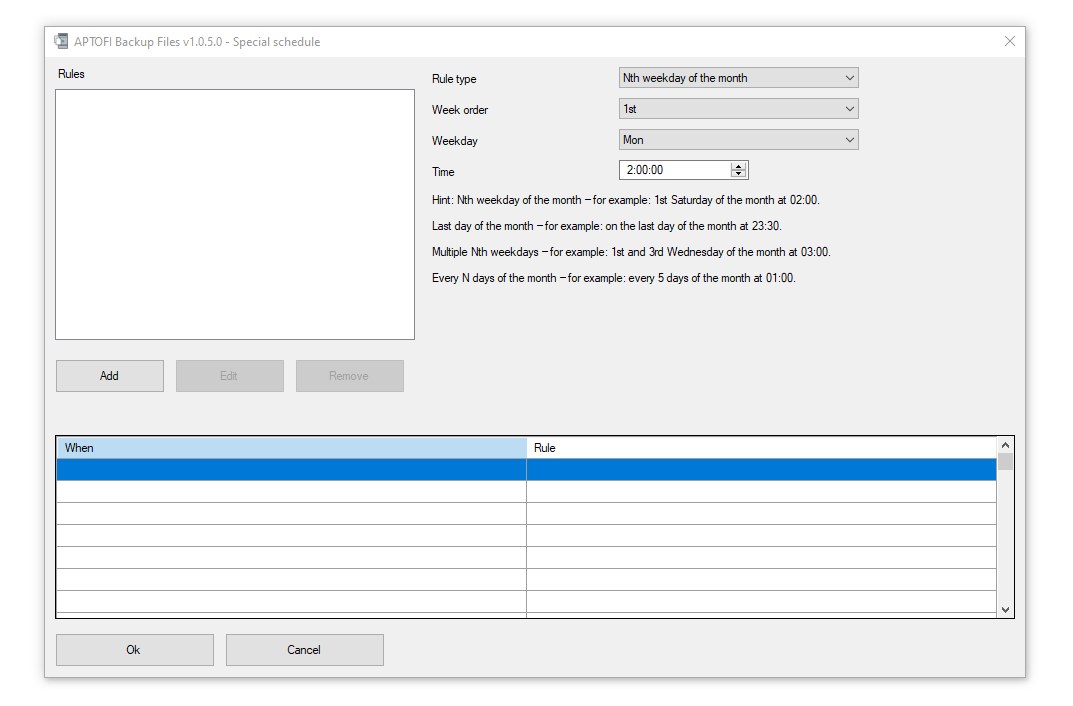
Runs on a specific weekday by its ordinal number within each month.
- Example 1: 1st Saturday of the month at 02:00
Settings: Rule type — Nth weekday of the month; Week ordinal — 1st; Weekday — Sat; Time — 02:00 - Example 2: 3rd Monday of the month at 01:30
Settings: Week ordinal — 3rd; Weekday — Mon; Time — 01:30 - Example 3 (last Saturday of the month): choose the 5th Saturday. If the month has only 4 Saturdays, the program will automatically use the last one.
Settings: Week ordinal — 5th; Weekday — Sat; Time — 02:00
Runs on the last calendar day of each month (28/29/30/31 — automatically).
- Example: Last day of the month at 23:30
Settings: Rule type — Last day of the month; Time — 23:30
Works correctly for all months, including February and leap years.
3. Multiple ordinals for a weekdayLets you select multiple week ordinals for the same weekday.
- Example 1: 1st and 3rd Wednesday of the month at 03:00
Settings: Rule type — Multiple ordinals; Select — 1st and 3rd; Weekday — Wed; Time — 03:00 - Example 2: 2nd, 4th, and 5th Friday of the month at 22:00
If the 5th Friday does not exist, the last Friday of the month is used.
Runs at a fixed step within each month, starting from day 1.
- Example 1: Every 5 days of the month at 01:00
Runs: 1, 6, 11, 16, 21, 26. Settings: Rule type — Every N days; N = 5; Time = 01:00 - Example 2: Every 10 days of the month at 02:30
Runs: 1, 11, 21. If the step goes beyond the month length, execution stops until the next month.
Jobs can be saved to a file and moved between computers.
Russian, English, French, German, Spanish, Italian, Portuguese, Ukrainian, Polish, Turkish, Chinese, Japanese, Korean.
The program supports Volume Shadow Copy Service (VSS). This allows it to:
- archive files that are open by the system;
- correctly back up active work documents;
- back up active databases;
- create a consistent volume snapshot.
It is not recommended to include OS system files in backups.
The program is distributed free of charge and is used in its current working state. Further updates may follow.